Scheduled Reports
Automate report generation and delivery on a recurring schedule.
Overview
Scheduled reports allow you to:
- Automatically generate reports
- Deliver to stakeholders via email
- Maintain consistent reporting cadence
- Save time on routine reporting
Creating a Schedule
From a Report
- Open or create a report
- Click Schedule or Automate
- Configure schedule settings
- Add recipients
- Save schedule
From Reports List
- Go to Reports
- Find the report to schedule
- Click Schedule in the action menu
- Configure and save
Schedule Settings
Frequency Options
| Frequency | Description |
|---|---|
| Daily | Every day at specified time |
| Weekly | Specific day(s) of week |
| Monthly | Specific day of month |
| Quarterly | Every 3 months |
| Custom | Advanced scheduling |
Time Settings
| Setting | Description |
|---|---|
| Time | When to generate (in your timezone) |
| Timezone | Which timezone to use |
| Business days only | Skip weekends/holidays |
Example Schedules
Weekly Monday Report
- Frequency: Weekly
- Day: Monday
- Time: 8:00 AM
- Covers: Previous week's data
End of Month Summary
- Frequency: Monthly
- Day: Last day of month
- Time: 6:00 PM
- Covers: Entire month
Daily Compliance Check
- Frequency: Daily
- Time: 7:00 AM
- Business days: Yes
- Covers: Previous day
Report Date Ranges
Relative Date Ranges
Scheduled reports use relative dates:
| Range | Description |
|---|---|
| Today | Current day |
| Yesterday | Previous day |
| This week | Current week |
| Last week | Previous full week |
| This month | Current month |
| Last month | Previous full month |
| Last 7 days | Rolling 7-day period |
| Last 30 days | Rolling 30-day period |
Automatic Adjustment
Date ranges adjust automatically:
- "Last week" always shows the previous week
- "This month" shows current month to date
- Rolling periods move with each generation
Recipients
Adding Recipients
- Click Add Recipient
- Enter email address or select user
- Add multiple as needed
- Set recipient options
Recipient Options
| Option | Description |
|---|---|
| Internal users | Select from user list |
| External email | Any email address |
| Distribution list | Multiple emails |
Recipient Types
| Type | Receives |
|---|---|
| To | Primary recipient |
| CC | Copy |
| BCC | Hidden copy |
Delivery Options
Format
Choose export format:
- PDF (default, best for viewing)
- Excel (for data analysis)
- CSV (for data processing)
Email Settings
| Setting | Description |
|---|---|
| Subject | Custom or default |
| Message | Optional body text |
| Attach report | File attachment |
| Include link | Link to view in Kuviq |
Conditional Delivery
Optional conditions:
- Only if data exists
- Only if thresholds met
- Only on business days
Managing Schedules
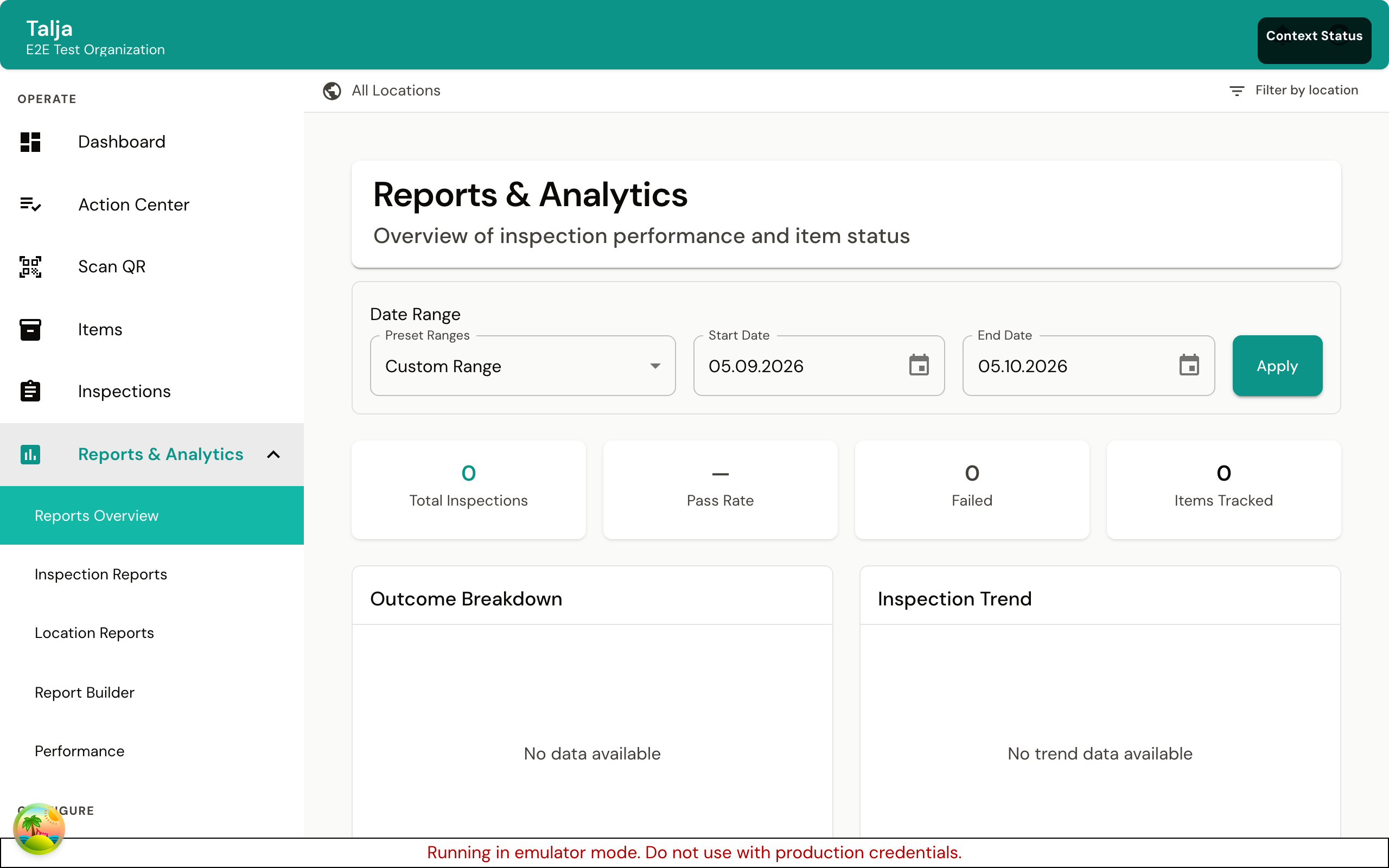
Viewing Schedules
- Go to Reports > Schedules
- See all active schedules
- View next run time
- Check recent deliveries
Schedule List Shows
- Report name
- Frequency
- Next run
- Recipients count
- Status (Active/Paused)
Editing Schedules
- Find schedule in list
- Click Edit
- Modify settings
- Save changes
Pausing Schedules
Temporarily stop:
- Find schedule
- Click Pause
- Schedule won't run until resumed
- Click Resume to restart
Deleting Schedules
- Find schedule
- Click Delete
- Confirm deletion
- Schedule permanently removed
Schedule Status
Status Indicators
| Status | Meaning |
|---|---|
| Active | Running as scheduled |
| Paused | Temporarily stopped |
| Error | Last run failed |
| Pending | First run not yet occurred |
Monitoring Runs
View run history:
- Go to schedule details
- Click History or Runs
- See past executions
- Review any errors
Run Details
Each run shows:
- Run time
- Status (success/failed)
- Recipients
- File generated
- Errors if any
Error Handling
Common Errors
| Error | Cause | Solution |
|---|---|---|
| No data | No data for period | Check filters |
| Delivery failed | Invalid email | Update recipient |
| Timeout | Report too large | Simplify report |
| Access denied | Permission issue | Check report access |
Error Notifications
When errors occur:
- Schedule owner notified
- Error details provided
- Retry attempted (configurable)
- Manual review may be needed
Automatic Retries
Failed runs can retry:
- 1 retry after 30 minutes
- 2nd retry after 2 hours
- Then marked as failed
Best Practices
Schedule Timing
- Consider audience - When will they read it?
- Data availability - Ensure data is complete
- System load - Avoid peak hours
- Time zones - Recipients' local time
Frequency Selection
| Report Type | Recommended Frequency |
|---|---|
| Operational | Daily |
| Compliance | Weekly |
| Executive | Monthly |
| Audit | Quarterly |
Recipient Management
- Include only necessary recipients
- Use distribution lists for groups
- Review recipients periodically
- Remove departed users
Report Content
- Keep reports focused
- Use relative date ranges
- Include context in email
- Test before activating
Advanced Scheduling
Multiple Schedules
One report can have multiple schedules:
- Daily to operations team
- Weekly summary to managers
- Monthly to executives
Different Formats
Same report, different formats:
- PDF for viewing
- Excel for analysis team
- CSV for data team
Conditional Scheduling
Schedule based on conditions:
- Only send if failures exist
- Only send if overdue items
- Only send if threshold exceeded
Permissions
Who Can Schedule
Typically:
- Report owners
- Admins
- Users with reporting permissions
Who Can Receive
- Any internal user
- External emails (if enabled)
- Subject to organization policy
Managing Others' Schedules
Admins can:
- View all schedules
- Edit any schedule
- Delete any schedule
- Reassign ownership
Use Cases
Weekly Team Report
Setup:
- Report: Team Inspection Summary
- Frequency: Weekly (Monday)
- Time: 8:00 AM
- Recipients: Team members
- Format: PDF
Purpose: Start week with last week's summary
Daily Overdue Alert
Setup:
- Report: Overdue Inspections
- Frequency: Daily
- Time: 7:00 AM
- Recipients: Managers
- Condition: Only if overdue items exist
Purpose: Alert managers to urgent items
Monthly Board Report
Setup:
- Report: Executive Dashboard
- Frequency: Monthly (1st day)
- Time: 6:00 AM
- Recipients: Leadership
- Format: PDF
Purpose: Monthly metrics for leadership
Quarterly Compliance
Setup:
- Report: Comprehensive Compliance
- Frequency: Quarterly
- Time: End of quarter
- Recipients: Compliance team
- Format: Excel + PDF
Purpose: Quarterly compliance review
Technical Implementation
Cloud Functions
Scheduled reports are processed by Firebase Cloud Functions that run hourly:
| Function | Purpose |
|---|---|
processScheduledReports | Hourly job that checks for due schedules |
runScheduledReportNow | Manually trigger a specific schedule |
getScheduleExecutionHistory | Retrieve execution logs |
Processing Flow
- Schedule Check - Hourly function queries schedules where
nextRun <= now - Report Generation - Fetches report config and generates data
- Export - Converts to requested format (PDF, Excel, CSV)
- Storage - Uploads to Firebase Storage with signed URL
- Notification - Queues email to recipients with download link
- Update - Calculates and stores next run time
Charts in PDF Exports
PDF exports include rendered chart images:
- Bar charts, line charts, and pie charts are rendered as high-quality images
- SVG-based rendering ensures crisp output
- Charts are embedded directly in the PDF
Real-Time Metrics
For dashboard widgets with real-time updates:
- Auto-refresh every 30 seconds (configurable)
- Firestore listeners for immediate updates
- Supports multiple metric types:
inspection_count- Total inspectionsinspection_pass_rate- Pass/fail percentageitems_total- Item countscompliance_rate- Overall complianceoverdue_inspections- Overdue counts
Execution Logs
Each scheduled run creates a log entry with:
{
  scheduleId: string
  reportId: string
  status: 'success' | 'failure' | 'partial'
  startedAt: Timestamp
  completedAt: Timestamp
  recipientCount: number
  recipientsSent: number
  fileUrl?: string
  fileSize?: number
  errorMessage?: string
  processingTimeMs: number
}
Troubleshooting
Report Not Delivered
Check:
- Schedule is active
- Email addresses valid
- No errors in history
- Check spam folders
Wrong Data in Report
Check:
- Date range settings
- Filter configurations
- Report last modified
- Data availability timing
Duplicate Reports
Check:
- Multiple schedules exist
- Recipients on multiple lists
- Forwarding rules
Cloud Function Errors
Check:
- Firebase Console > Functions > Logs
- Verify function is deployed
- Check execution history in Firestore
- Review
reportExecutionLogscollection
Next Steps
- Sharing Reports - Access control
- Report Templates - Quick reports
- Export Options - Manual exports