Sharing Reports
Control access and share reports with stakeholders.
Overview
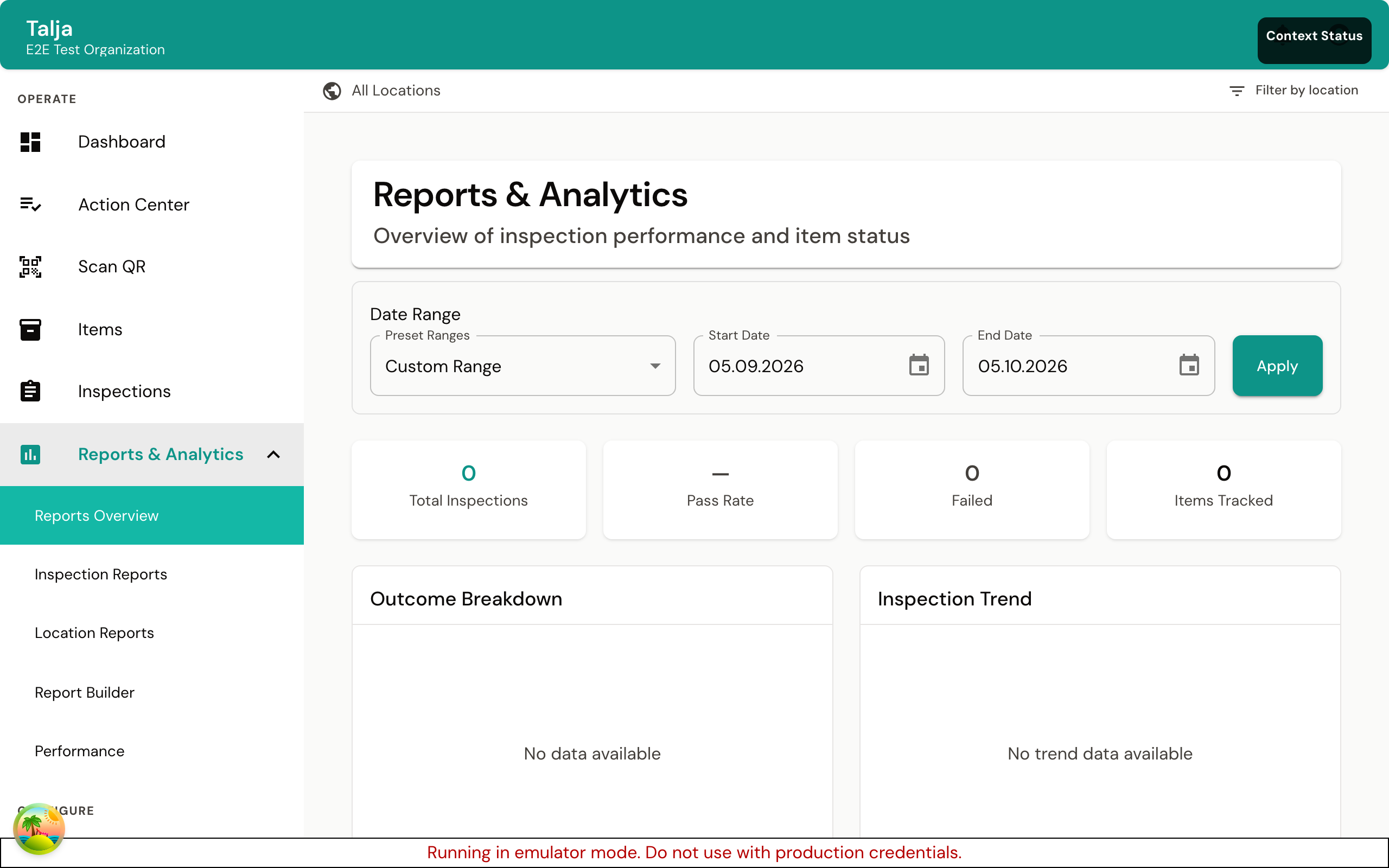
Report sharing allows you to:
- Control who can view reports
- Share with specific users or teams
- Collaborate on reports
- Distribute to stakeholders
Access Levels
Permission Types
| Level | Can Do |
|---|---|
| Owner | Full control, delete, transfer |
| Editor | View, run, edit, share |
| Viewer | View and run only |
| None | No access |
Default Permissions
When you create a report:
- You are the owner
- Others have no access
- You choose who to share with
Sharing a Report
Quick Share
- Open the report
- Click Share button
- Enter user name or email
- Select permission level
- Click Share
From Reports List
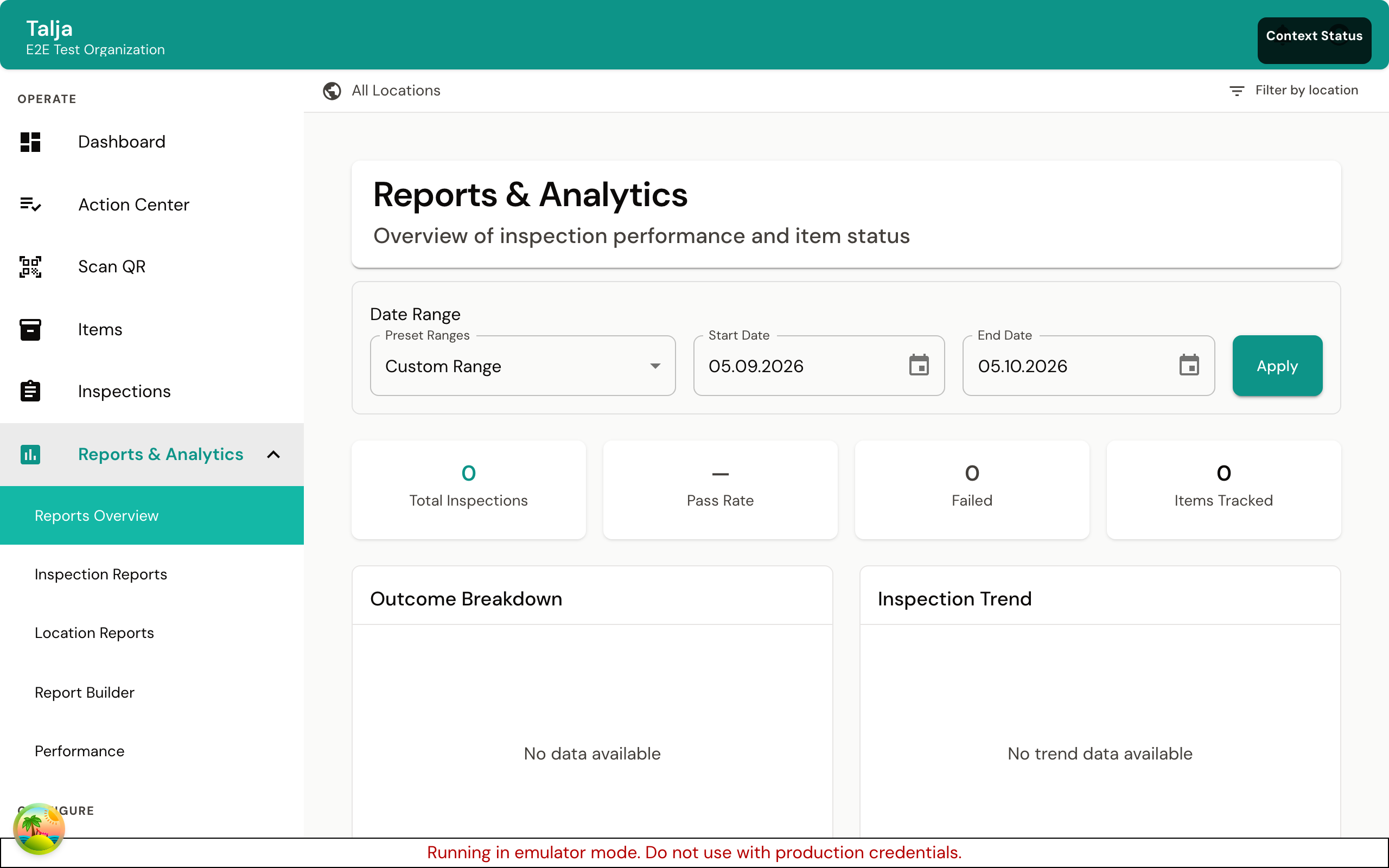
- Go to Reports
- Find the report
- Click Share in actions
- Configure sharing
- Save
Share Settings
Individual Users
Share with specific people:
- Click Add People
- Search for users
- Select user(s)
- Set permission level
- Add
Teams/Groups
Share with entire teams:
- Click Add Group
- Select team or role
- Set permission level
- Add
Organization-Wide
Make available to everyone:
- Toggle Share with Organization
- Set default permission level
- All users can access
Permission Details
Owner Permissions
- View and run report
- Edit report configuration
- Share with others
- Transfer ownership
- Delete report
- Manage schedules
Editor Permissions
- View and run report
- Edit report configuration
- Share with others (can't exceed own level)
- Create schedules
Viewer Permissions
- View report
- Run with different parameters
- Export results
- Cannot edit or share
Managing Shared Reports
Viewing Who Has Access
- Open report
- Click Share or Manage Access
- See list of users/groups
- View their permission levels
Changing Permissions
- Find user in share list
- Click permission dropdown
- Select new level
- Save
Removing Access
- Find user in share list
- Click Remove or trash icon
- Confirm removal
Sharing with External Users
External Sharing Options
| Method | Description |
|---|---|
| Email export | Send as attachment |
| Public link | Generate shareable link |
| Guest access | Temporary view access |
Public Links
If enabled:
- Click Get Link
- Configure link settings
- Copy and share link
- Recipients can view without login
Link Settings
| Setting | Description |
|---|---|
| Expiration | Link validity period |
| Password | Require password |
| Download | Allow/prevent download |
| Watermark | Add watermark to exports |
Security Considerations
When sharing externally:
- Use expiring links
- Consider password protection
- Monitor link usage
- Revoke when no longer needed
Report Categories
Personal Reports
- Created by you
- Only you can access by default
- You control sharing
Shared Reports
- Shared with you by others
- Your permission level determines actions
- May be read-only
Organization Reports
- Available to all users
- Created by admins or designated users
- Standard reports for the organization
Collaboration
Working Together
Multiple editors can:
- Edit report configuration
- Saved changes are shared
- No version conflicts (last save wins)
Best Practices for Collaboration
- Coordinate changes
- Use comments or notes
- Review after changes
- Have clear ownership
Notifications
Share Notifications
When shared with someone:
- They receive notification
- Email optional
- Report appears in their list
Change Notifications
Optional notifications for:
- Report updated
- New data available
- Schedule changed
Folder Organization
Using Folders
Organize shared reports:
- Create folders
- Move reports to folders
- Share folders (shares all contents)
- Maintain structure
Folder Permissions
- Folder permissions apply to contents
- Can override for individual reports
- Useful for team organization
Transferring Ownership
When to Transfer
- Original owner leaving
- Reorganization
- Changing responsibility
Transfer Process
- Open report settings
- Click Transfer Ownership
- Select new owner
- Confirm transfer
What Transfers
- Full owner permissions
- Schedule ownership
- Sharing management
Access Requests
Requesting Access
If you find a report you can't access:
- Click Request Access
- Optionally add reason
- Owner receives notification
- Owner approves/denies
Handling Requests
As an owner:
- Receive request notification
- Review requestor
- Approve with permission level
- Or deny with reason
Audit Trail
Tracking Access
View who accessed reports:
- Open report
- Go to Activity or History
- See access log
Log Details
- Who viewed
- When accessed
- What actions taken
- Exports made
Best Practices
Access Control
- Need-to-know - Only share with those who need it
- Appropriate level - Viewer unless editing needed
- Regular review - Check access lists periodically
- Clean up - Remove access when not needed
Organizing Shared Reports
- Use clear naming
- Add descriptions
- Use folders logically
- Document purpose
External Sharing
- Minimize external shares
- Use expiring links
- Consider sensitivity
- Track distributions
Troubleshooting
Can't Share Report
Check:
- You have sharing permission
- Recipient exists in system
- Sharing enabled for report type
Recipient Can't See Report
Check:
- Share was saved
- User logged in
- No permission conflicts
- User looking in correct location
Can't Find Shared Report
Try:
- Search by name
- Check Shared With Me section
- Contact person who shared
- Verify share notification
Next Steps
- Report Builder - Create reports
- Scheduled Reports - Automate delivery
- Export Options - Export formats